April 28, 2026 · 8 min read
How to Convert a U.S. Bank Statement to Excel
Export your U.S. Bank Smartly Checking, Standard Savings, Money Market, Cash+ Visa, or business-checking PDF statement to XLSX, CSV, or QBO — verified against the running balance.
U.S. Bank is the fifth-largest commercial bank in the country, which means there is a very wide range of statement layouts you might be holding — Smartly Checking for a personal account, a Standard Savings or Money Market with interest credited monthly, a Cash+ or Altitude credit card, or a Silver/Gold/Platinum business-checking statement with several hundred transactions per month. The PDF templates share a common backbone (account header, balance summary, transactions table, fees, interest), but the density and the sign conventions shift enough between products that copy-pasting into a spreadsheet is rarely a one-pass operation.
What earns its keep on a U.S. Bank conversion isn't a fancy layout fight — the layout is fine. It is the running-balance reconciliation that catches the one-row error you would otherwise carry into QuickBooks or a tax filing without noticing.
Downloading from U.S. Bank online
Sign in at usbank.com, open the account, and use Customer Service → Statements & Documents to pull the monthly PDF. Up to seven years of statements are available online for most accounts. The U.S. Bank Mobile App has the same export under Account → Statements & Tax Documents. Combined statements are available on linked relationship accounts and bundle multiple accounts into a single PDF — those parse fine, but the balance summary appears once per account section, which is useful to know if you are checking the reconciliation by eye.
- Smartly Checking, Easy Checking, Safe Debit: personal checking statements with the standard beginning/ending summary, transactions in posted-date order, and any monthly maintenance fees broken out at the bottom.
- Standard Savings, Smartly Savings, Elite Money Market: savings products with sparse activity beyond transfers and the monthly interest credit — short statements that batch nicely.
- CDs (Standard CD, Step Up CD): minimal activity, mainly the interest credit and any maturity rollover line.
- Cash+ Visa Signature, Altitude Go, Altitude Reserve, Altitude Connect: credit-card statements with purchases, payments, fees, interest, and rewards earned/redeemed lines that can look like transactions but are accounting-only entries.
- Silver / Gold / Platinum Business Checking: small-business statements with denser transaction detail, recurring vendor lines, and analysis-fee summaries on the higher tiers.
Older U.S. Bank statements — particularly anything migrated from a legacy account or pulled from a paper-statement archive — sometimes arrive as scan-style PDFs rather than text-native ones. Those route through the vision-capable LLM fallback automatically: same output, same running-balance check, slightly longer parse time.
What our U.S. Bank conversion does
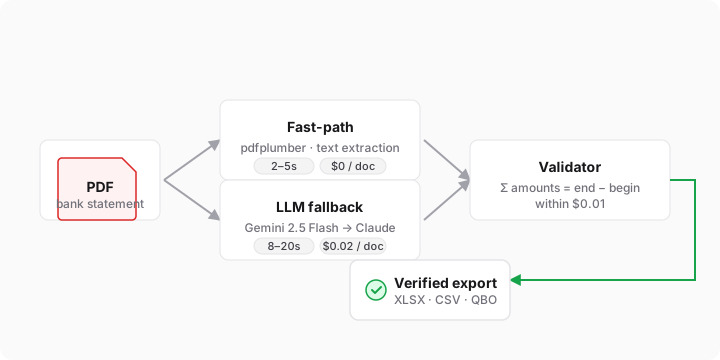
Drop the PDF on our U.S. Bank conversion page and you get back a structured file with every transaction: posted date, description, signed amount, and the running balance recomputed row-by-row. The result is stamped Verified only when the sum of every transaction equals ending balance minus beginning balance to the penny — so any drop-through error caused by a wrapped description, an interest-credit line, or a multi-page transaction block is caught before you commit it into bookkeeping.
For credit-card statements (Cash+, Altitude) the sign convention is tuned for U.S. Bank's template: purchases are positive, payments and merchandise credits are negative, interest and fees are positive. Rewards-earned lines that show up in a separate "Rewards Activity" block are excluded from the transaction sum so they do not double-count against the verified total.
Why manual transcription is specifically painful here
Two U.S. Bank quirks make manual copy-paste fragile. The first is the Money Market and Premier Savings templates, where small interest-accrual entries get scattered across the month rather than aggregated into a single end-of-month credit. Each one is a separate row to transcribe and an easy one to lose between two visually similar lines. The second is business-checking statements at Gold and Platinum tiers, where transaction descriptions for ACH and wire entries can run two or three lines long — when you paste into Excel, those wrap in unpredictable places and the column alignment falls apart row by row.
A proper extractor handles description wrap at the layout level — it sees that the second line continues the first — so every row in the export carries one transaction with its full description, regardless of how many visual lines the original PDF used to render it.
XLSX, CSV, or QBO — which export to pick
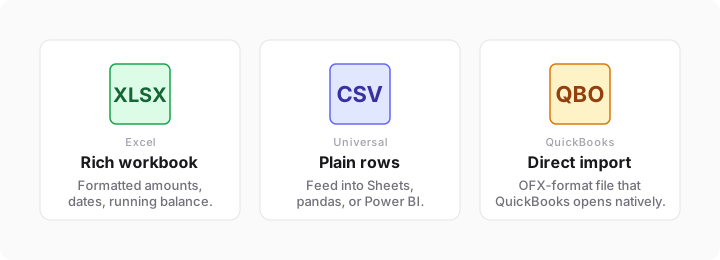
The same parsed row set can come out in three formats. Pick based on what you're doing with the data next, not on which one sounds safest — they all carry identical transactions, only the wrapper differs.
XLSX — when you want Excel to do the work
Choose XLSX when a human is going to open the file. The workbook comes with amounts formatted as currency, dates as real Excel dates (not text strings), and a running-balance column ready to sort, filter, and sum. It's the right pick for month-end review, handing a statement to an auditor, or pasting a block of transactions into a forensic-accounting report. Under the hood it's a standard .xlsx that Excel, Numbers, LibreOffice, and Google Sheets all open without fuss.
CSV — when another tool will consume it
Choose CSV when the next step is a script, a database import, a pandas notebook, or a Google Sheets IMPORTDATA call. CSV strips away all formatting, which is what you want when you're going to reformat yourself anyway. Amounts are plain numbers with a dot decimal separator, dates are ISO-8601 (YYYY-MM-DD), and descriptions are double-quoted to survive commas in merchant names.
QBO — when it's going straight into QuickBooks
Choose QBO when you're importing into QuickBooks Online or QuickBooks Desktop. The .qbo file is an OFX document with a QuickBooks-specific wrapper; QuickBooks opens it via the "Upload transactions" flow and matches rows to your existing U.S. Bank account by routing number and account number (both preserved from the statement). If you've been pasting transactions by hand, QBO import will save you hours per month per account.
Importing the file into QuickBooks
If QuickBooks is the destination, skip XLSX and export straight to QBO — QuickBooks accepts OFX-format .qbo files natively and matches transactions against the correct U.S. Bank account without manual mapping. The end-to-end flow looks like this:
- On bankpdftoxls.com, upload the U.S. Bank PDF and pick QBO as the export format.
- In QuickBooks Online, open Banking → Transactions → Link account (or, on the account already linked, Upload from file). Drop the .qbo file in.
- QuickBooks reads the routing number + account number from the file and asks which account to post to — pick your linked U.S. Bank account.
- Review the matched transactions. QuickBooks will suggest splits based on prior categorizations; accept them or adjust.
- If there are duplicates with transactions already imported via direct bank feed, QuickBooks flags them so you can exclude and avoid double-posting.
For QuickBooks Desktop the flow is slightly different — File → Utilities → Import → Web Connect Files — but the .qbo format is identical and the matching works the same way. Either way, the Verified badge on our side means the amounts you're about to import sum to the bank-printed ending balance, so your reconciliation inside QuickBooks starts from a known-good state.
Batch-converting a year of U.S. Bank statements
Most of our traffic is people who need not one statement but twelve — a full year for a tax return, three years for a mortgage pre-approval, or six months for a divorce discovery request. The batch upload takes up to 10 PDFs at once, processes them in parallel, and packages the results into a single ZIP.
- Sign in (batch requires a free account — this is the quickest path to running-balance verification across a multi-month period).
- Open /app/new and drop 2–10 PDFs onto the upload zone at once. File order doesn't matter.
- Each file gets its own status row — queued, parsing, verified or flagged. You can keep working in another tab while they run.
- When the batch finishes, click Download all (ZIP) to get every converted file in XLSX, CSV, or QBO — whichever format you picked.
If one statement in the batch fails verification, the rest still download. The failed one stays on the dashboard with the specific reason (missing ending balance, scan too low-res, etc.) so you can retry or hand that one file to a human without blocking the whole job.
U.S. Bank-specific tips
- Smartly Checking and Standard Savings statements are short — typically a second or two on the fast path. Batch upload makes sense even for 3–4 months at a time, since the queue completes faster than you can re-upload manually.
- For Cash+ Visa Signature, the rotating 5% category bonus appears as a positive rewards line in a separate block — it is not a transaction, and the converter excludes it from the running-balance sum. Don't add it back manually.
- Money Market statements with daily-balance-tier interest sometimes break the interest line into two entries (one for each tier crossed mid-period). Both are kept; the validator checks they sum to the printed monthly interest.
- For business-checking statements with analysis fees, export to XLSX rather than QBO if your bookkeeper wants the analysis breakdown laid out in adjacent columns — XLSX preserves the column structure cleanly, QBO collapses it into a single posted entry per month.
- If you converted older statements migrated from a U.S. Bank acquisition (Union Bank, MUFG Union retail), those may use the legacy template and route through the LLM fallback — output is identical, just a slower first parse.
Why the "Verified" badge matters
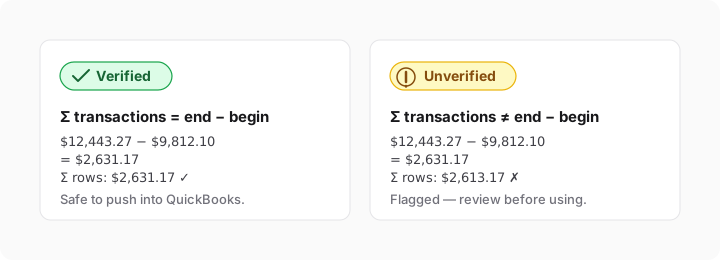
Every export we produce is reconciled against the arithmetic printed on the statement itself: the sum of every transaction must equal the ending balance minus the beginning balance, to within a penny. If it doesn't, you see an honest "unverified" badge rather than a silently broken XLSX. Most OCR-only and direct-LLM tools skip this check, which is how subtle sign errors end up in bookkeeping months later — by the time the mismatch surfaces during reconciliation, the original PDF is often archived and the error takes hours to trace.
For forensic and audit work this is non-negotiable. If you're preparing a bank-statement analysis for a divorce discovery packet, a loan application, or an IRS audit, "close enough" transcription will be challenged the minute someone runs a sum. The Verified badge is our way of saying "this file sums to the same number the bank printed" — and if it can't, we tell you instead of hiding it.
Frequently asked questions
Do I need an account?
No — one-off conversions work without signing in. A free account unlocks conversion history and the 10-file batch upload, which is the thing most users end up wanting once they've done a single file.
Are my U.S. Bank PDFs stored on your servers?
No. The PDF is parsed in memory and discarded as soon as the extraction finishes. Only the structured JSON (dates, descriptions, amounts) is persisted, and only if you're signed in, with a 24-hour default retention on the free tier. If you want zero retention, do the conversion signed out — nothing is saved at all.
Password-protected PDFs?
Yes. If the PDF is encrypted, the upload prompts for the password inline and decrypts in memory during parsing. We never store the password.
Can I convert multiple U.S. Bank statements at once?
Drop up to 10 PDFs in a single batch. Each runs through the queue with its own status row, and when everything finishes a single ZIP packages all the converted files in your chosen format — XLSX, CSV, or QBO — for one download.
How accurate is the conversion?
For digital PDFs (ones you downloaded directly from the bank, not scans) accuracy is effectively 100% on transaction rows, validated by the running-balance check. For scanned or low-quality PDFs we route through a vision LLM pass, and the same running-balance check still runs — so you always know whether the output is safe to use.